What happens when a guest can no longer attend and wants to give their ticket to a friend? With ticket transfers in Gomry, they can make that change from their ticket page or the mobile app, without asking your team to update the attendee list for them.
You decide which ticket classes allow attendees to transfer. The recipient accepts by email and signs in to claim the ticket. Once accepted, their details replace the previous holder's in your attendee list, exports and scanner app. Your team has the updated record without a support conversation for each change of plans.
From one guest to another
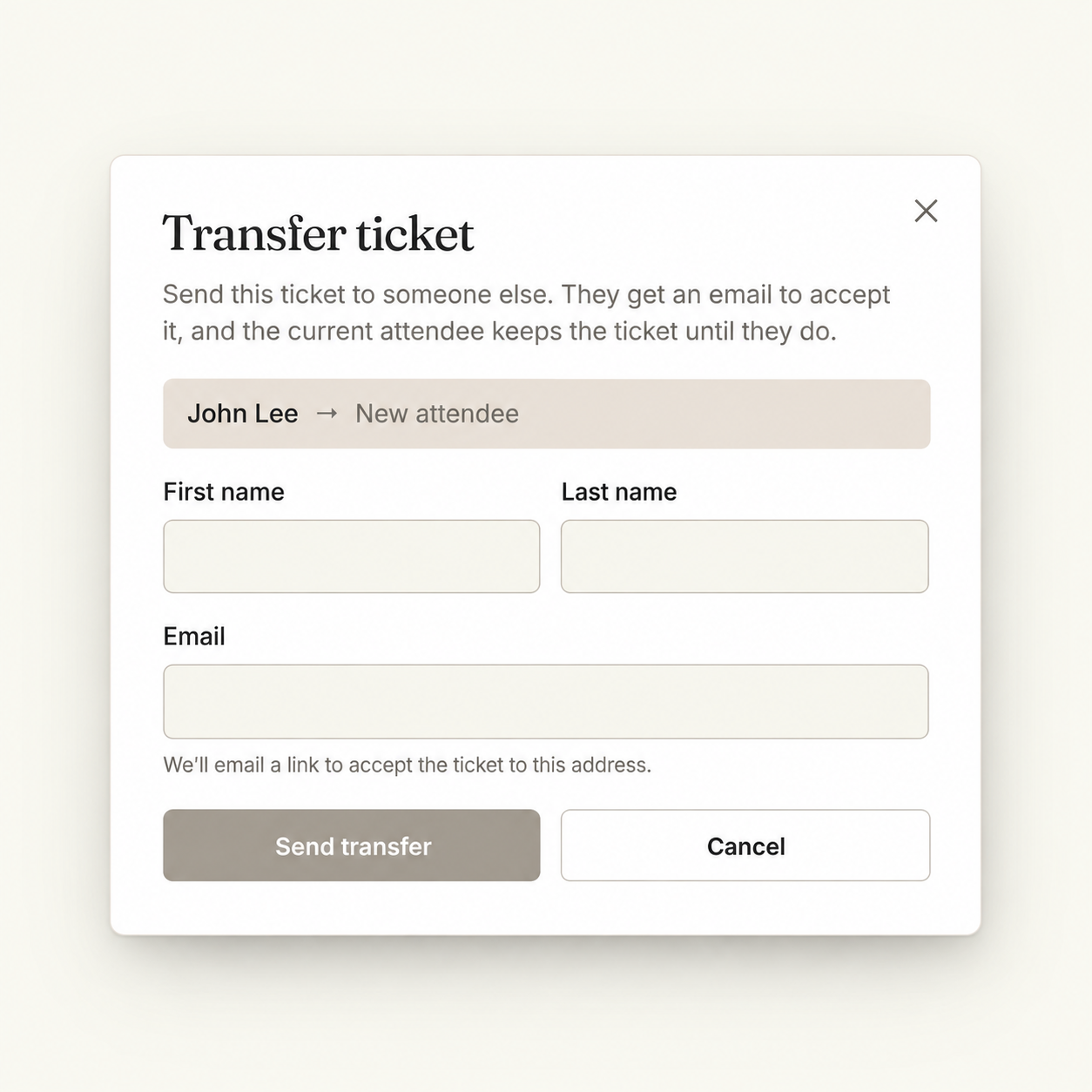
The ticket holder opens their ticket in Gomry and enters the recipient's first name, last name and email address. An organizer can also start the transfer from the attendee list using the same details.
The recipient receives an email with an Accept ticket link. They follow the link and sign in to claim it. Sending the invitation does not immediately move the ticket: it stays with the original holder until the recipient accepts.
There are seven days to accept, or until the event starts, whichever comes first. If the invitation expires, the ticket remains with its original holder. A transfer sent two days before the event therefore has a two-day acceptance window, not a full week.
That acceptance step also means an unanswered invitation, including one sent to a mistyped address, does not immediately change the recorded ticket holder.
Fewer requests for your team
When self-service transfers are allowed, the guest can send the invitation and the recipient can accept it without organizer intervention. Staff do not need to collect the replacement guest's details over email and manually apply the name change.
The update also carries through to the entrance. After acceptance, the scanner app shows the new holder's details, so the door team can look up the person who is now attending. The activity timeline records who transferred the ticket and when, giving staff context if a question comes up.
This keeps a routine change with the two people making it, while your team can still help with exceptions from the dashboard.
Set the rule for each ticket class
Ticket transfers are on by default. To disable attendee transfers for a ticket class, open its Advanced settings and clear Allow transfers. You can keep transfers available for general admission while keeping a VIP or invite-only class under your team's control.
When attendee transfers are disabled for a class, ticket holders do not see the transfer button. Organizers can still transfer those tickets manually from the dashboard.
The setting applies to the ticket class, so you do not have to apply the same policy to every ticket at the event. Explain that policy alongside your other ticket conditions so guests know what they can do if their plans change.
See and manage pending transfers
An invitation that has not been accepted appears with a Transfer pending badge in the attendee list. Open it to see the intended recipient, resend the email or cancel the pending transfer.
For example, if a guest entered the wrong email address, your team can cancel the pending transfer and start again with the correct details. If the email was simply missed, you can resend it.
Once the recipient accepts, the attendee list updates to the new holder. The transfer is also recorded in their activity timeline.
The ticket stays the same. The attendee changes.
The ticket keeps its QR code and ticket class. A general-admission ticket remains general admission; transferring it does not upgrade it to VIP. There is no replacement barcode to generate or ticket to print.
The original barcode remains valid. The transfer updates the recorded holder; it does not replace the code with a new one. Staff should use the current attendee details in Gomry when resolving a question at the door.
Gomry also handles form answers according to what they describe. Answers that identify the previous holder, such as their name, email or phone number, are cleared. Booking-related answers, such as a dietary requirement or T-shirt size, are retained.
Those retained answers came from the original booking. If the replacement guest needs a different meal or size, review the arrangement with them rather than assuming the carried-over answer describes the new person.
Which tickets can be transferred?
Some ticket states prevent a transfer. A ticket cannot be transferred while it is awaiting organizer approval, awaiting payment or in the middle of an upgrade. Resale tickets from partner listings are also excluded.
A transfer is blocked if the intended recipient already holds a ticket for that exact event. Check this when helping a guest whose transfer will not go through.
These rules concern ticket-holder changes. Keep them separate from prepaid Experience credits and from moving a booking to another date.
Put the policy in place before the next event
Leave transfers enabled for the ticket classes where guests can arrange their own replacement. For any restricted class, clear Allow transfers in its Advanced settings. Make sure your team knows where to find pending transfers and how to resend or cancel an invitation.
For guests, the process is straightforward: send the invitation, accept it before the deadline and use the existing ticket. For your team, the accepted change is already reflected in the attendee record and the check-in workflow.
Review your ticket classes and attendee list in the Gomry dashboard. Explore Gomry ticketing.